Step-by-step · no code
Hear a script and test Agents
Choose a script and an Agent. Keep the original dialogue while the Agent adds emotion using its personality and world lore. Agent Tests, a separate feature, check how your Agent answers after you change it.
Start here
What would you like to do?
| I want to… | Open… | What happens |
|---|---|---|
| Hear how a written dialogue sounds | Scripts | The Agent adds emotion tags to the original Assistant lines and reads them in its saved voice. User audio is optional. |
| Keep past mistakes from coming back | An Agent → Tests → Test suite | Replays saved conversations up to one User message, checks the Agent's next reply against your expectations, and compares runs. |
| Check my Agent's answers after an edit | An Agent → Tests | Sends each User line to the Agent and saves its new reply and audio. |
| Continue a conversation from an example | Live conversation → Start from example | Creates a chat with that example's two opening messages. You send the next message. |
New here? Start with Listen to a script: import, generate, play.
Importing is free. Generate audition, Run and Run again make new model calls, billed at supplier cost; Workspace BYOK calls deduct no credits. Replaying saved audio is free.
First time
Listen to a script
You need Text to Speech and Agent run access, and an Agent with a saved Fish Audio S2 or ElevenLabs v3 voice. Other voices cannot generate emotion-tagged auditions.
Open Scripts and import a dialogue
Select Scripts in the left navigation under either Text to Speech or Agents & Live. Your saved scripts appear first. Select Import script and choose a
.txtor.mdfile, such as the sample script.Sample script[harbor] User: I found a pearl in the old city. Assistant: Keep it safe. It means more than you know. User: Are we in danger? Assistant: Stay close. We will get through this together.Each
User:andAssistant:pair is an exchange. A[scene]label is optional. Order and repeated exchanges are kept, up to 5,000 exchanges. Importing saves the script without generating audio or using credits.Choose the Agent that will perform it
Open a script to read its original dialogue. Under Cast an Agent, choose an Agent. The form shows its current saved version and voice, including saved unpublished drafts. Unsaved changes in the Agent editor are not used.
The Agent adds one or two emotion or delivery tags before each Assistant line, informed by its personality, world lore and preceding dialogue in the same continuous scene. Only tags are generated: spelling, punctuation, spacing and existing brackets in the saved dialogue stay unchanged. Scene context uses up to 20 preceding exchanges within a bounded text window; world-book keyword rules still apply.
Also read User lines is optional. Enable it and select a User voice for a two-sided dialogue. Otherwise User lines remain visible as context and only the Agent speaks. User lines are read as written, without Agent-generated tags.
Generate and listen
Select Generate audition. The audio estimate is based on text length; model calls settle at supplier cost, or zero credits for Workspace BYOK. Tagging uses the Workspace speech-annotation override or the Agent's saved model. Matching saved User audio is reused without another audio charge. Punctuation-only lines are skipped without a TTS request.
The run continues in the background. Select Play dialogue to hear the generated lines in order. The transcript shows the original text and the added emotion tags. Playback waits for unfinished lines. Use skip, seek, speed and flags to revisit a line. Flags and listening position are private to you.
Tagging errors are shown on the affected line. Retry failed items keeps successful clips and already-saved tags; it does not silently substitute plain speech. Unsupported Agent voices are disabled before generation.
Return to a saved audition
Open Scripts → your script → Audition history. Each run shows the Agent name and saved version. Select it, then Resume. Later Agent edits never replace earlier results. Old Batch audition links open here too; old multi-voice results remain playable as Voice audition (legacy).
Optional
Compare Agent performances
Choose another Agent on the same script and select Generate audition again. Switch between results in Audition history to compare how they perform identical dialogue. Each run has one Agent and its own saved voice; this view does not combine several Agents into one run.
Agent Tests
Import examples for Agent Tests and Live
Agent Tests and Start from example use examples, not scripts. An example is one User message and one Assistant reply under a [scene] label. A collection is a saved set of examples. Unlike a script import, an example import removes exact duplicates and shows a preview before saving.
Open the import dialog
From an Agent's Tests → New test → Test script · replies and audio (or Add from examples in a test suite), or from Live conversation → Start from example, select Import file…, then Choose a text or Markdown file, and choose the same
testing-examples.txt.Check the preview and save
Set Collection name to
My first examples. The preview should say 2 unique examples · 1 duplicates removed. Select Save examples. You should see Examples saved. No conversation or audio was created.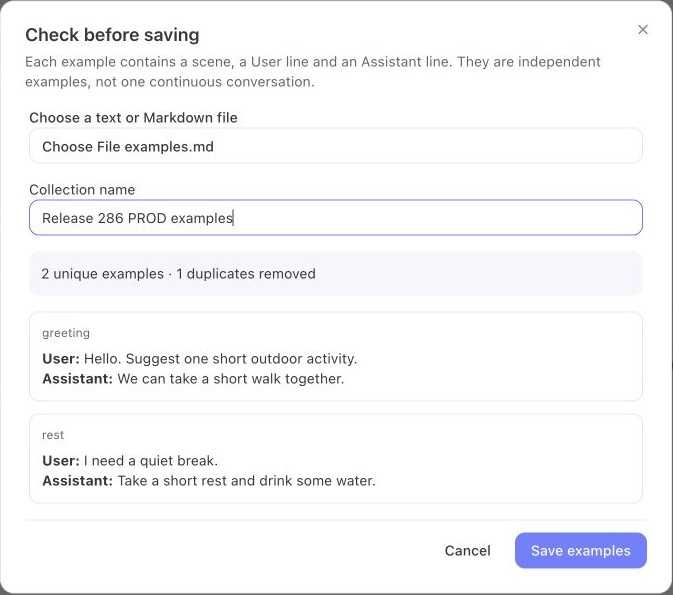
Every example needs a
[scene]label, thenUser:, thenAssistant:. Files must be smaller than 2 MB, with at most 5,000 unique examples. If you see Already imported — opened the saved copy., keep the selected collection and use its name wherever this guide saysMy first examples.
Test answers
Save and run an Agent test script
A test script saves which examples you want one Agent to answer. A run is one attempt at that script, with its own replies and audio. Each User message is tested independently. The imported Assistant reply is only a reference you can read afterward. It is not sent to the Agent.
You need Agent run and Text to Speech access. If you do not have an Agent yet, follow Create the first draft and Configure every section, then Save draft. A script can test a saved draft without publishing it.
Open the Agent's Tests tab
In the top-left product menu choose Agents & Live, then Agents. Find your Agent and select Tests, then New test and Test script · replies and audio.
Name the script and choose examples
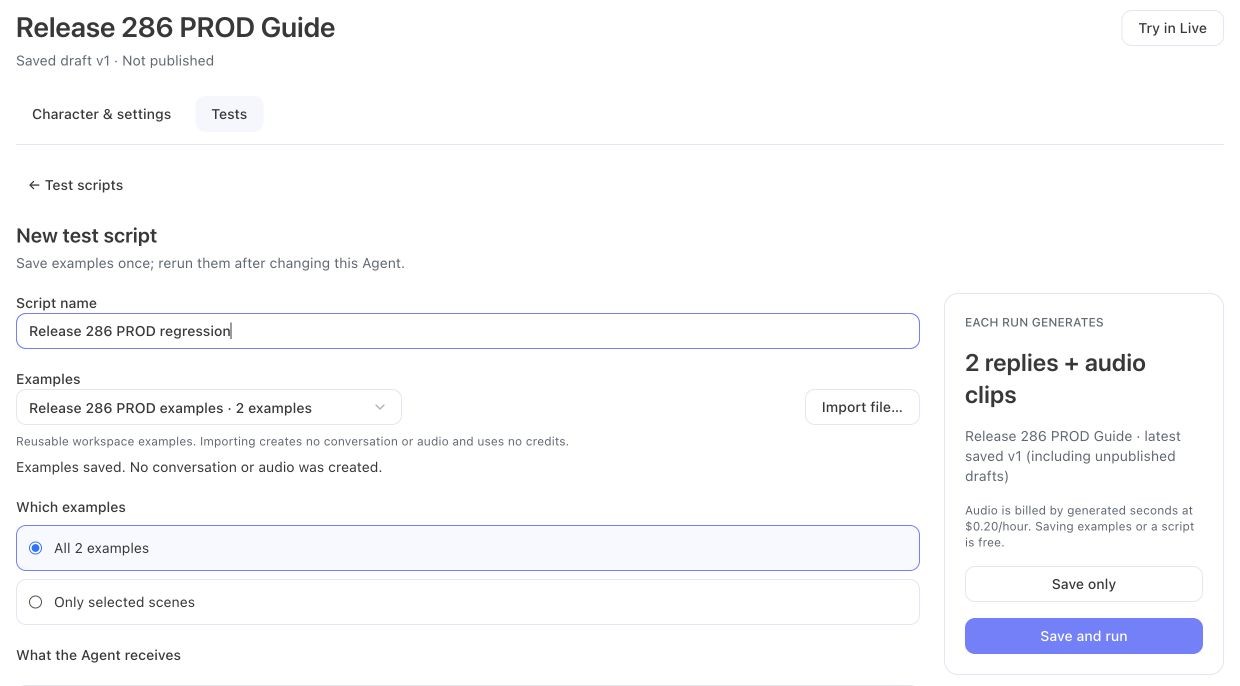
Enter
My first answer testin Script name. SelectMy first examplesunder Examples, or use Import file… and follow the import steps. Keep All 2 examples.Each run generates shows two new replies and two audio clips, using the Agent's latest saved version and voice.
Save without generating
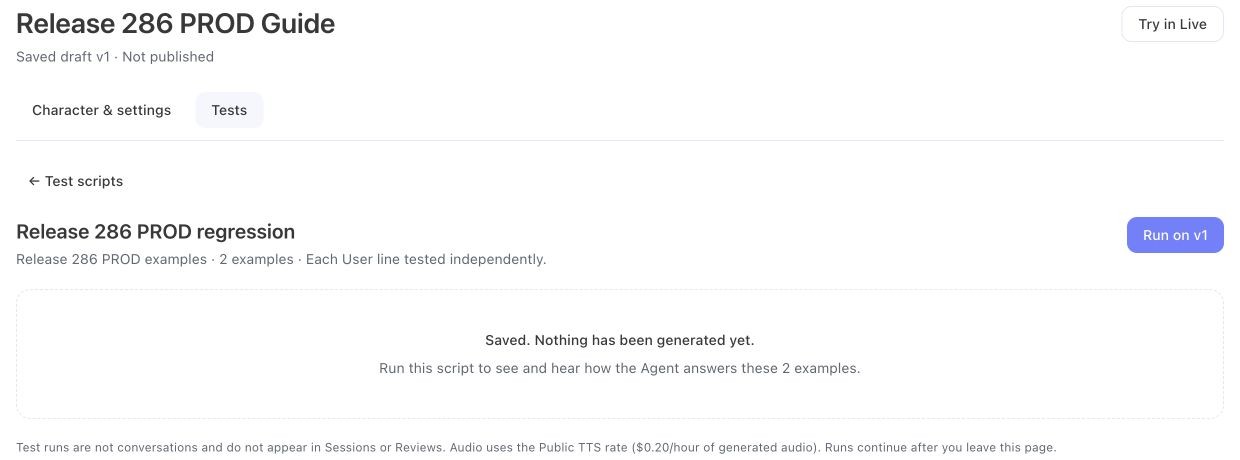
Select Save only. You should see Saved. Nothing has been generated yet. Save and run saves and immediately starts paid generation.
Run, read, and listen
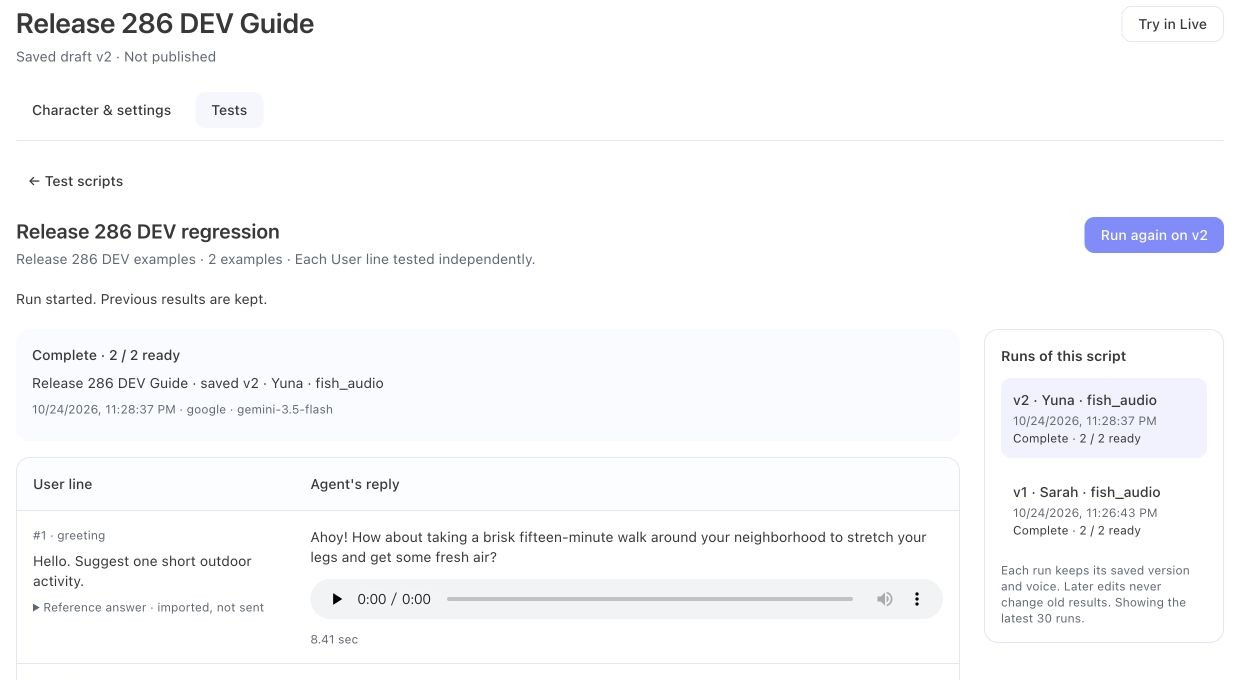
Select Run on v1. Your version number may differ. Wait for Complete · 2 / 2 ready, then read Agent's reply and play its audio. Expand Reference answer · imported, not sent to compare it with the original answer.
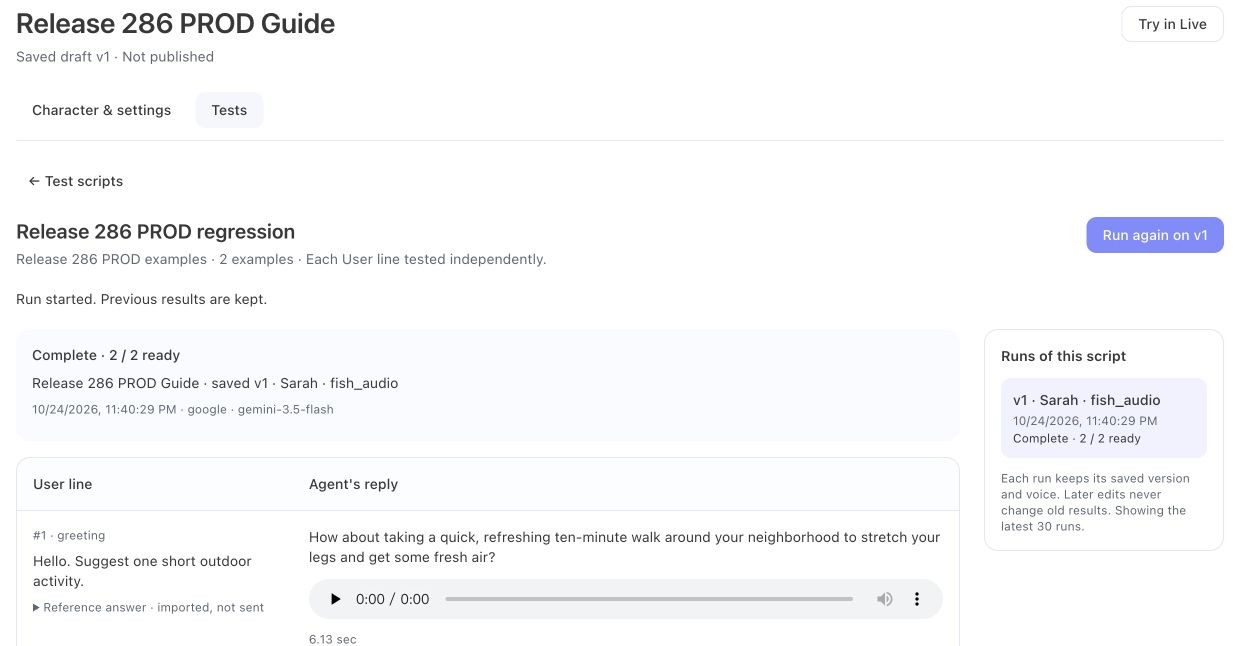
To return later: Agents → your Agent → Tests → Open script. Tests continue after you leave the page and do not appear in Sessions or Reviews. They do not use shared conversation memory, documents, calendar actions, or web search; use Live conversation to test those.
After an edit
Check what changed without losing old results
Edit and save your Agent
Open Character & settings for the same Agent. For a visible change, add
Begin every reply with Ahoy.to Character → Personality. To test a different voice, change Appearance & voice → TTS variant. Select Save draft. Saving does not start another test.Run the script again
Return to Tests, select Open script beside
My first answer test, and select Run again on v2 (or the version shown). This uses your latest saved draft, even if it is unpublished, and incurs new audio charges.Open either run
Under Runs of this script, select the older version to see its original answers and voice, or the newer one to hear the new result. Changing the Agent never overwrites a run. Runs are viewed one at a time, and history shows the latest 30.
Quality
Turn failed conversations into a test suite
A test suite is a named set of cases. Each case is a conversation that ends with one User message, plus what a good next reply should do. When you run the suite, the Agent sees the earlier messages as context and answers only that last User message. Use suites to keep a conversation that went wrong as a repeatable check, then rerun it after changing the Agent's prompt or model.
You need Agent run access. Text to Speech access is needed only for the optional audio. Saving a suite is free and starts nothing.
Create a suite
Open Agents → your Agent → Tests, select New test, and keep Test suite · checks replies selected. Enter a Suite name. A suite holds up to 100 cases.
Add cases
- Add case writes one by hand. Fill in the Conversation: add earlier User and Assistant messages if needed, and end with the User message to test. Up to 40 messages and 48,000 characters per case.
- Add from examples uses saved or imported examples (see Import examples). Tick the examples you want; each becomes its own case. Earlier exchanges kept as context is 0 by default, which tests each example on its own. Set a number to add up to that many earlier examples from the same scene as context.
- Add from a session lists this Agent's past sessions. Open one and choose the User message to test. Earlier messages stay as context; the Agent's original answer is saved as Original reply and is never sent to the Agent. Earlier messages to keep shows exactly how many earlier messages are kept and whether older ones were left out to stay within the limits.
- While reviewing a conversation in Sessions, select Add to test under a User message, or under an Agent reply to test the User message it answered. A User message the Agent never answered is marked No reply and offers Test the missed reply; its case has no original reply, so describe the reply it should have given. Choose an existing suite you created or New suite…, adjust Earlier messages to keep, fill in what a good reply does, then select Add to suite or Create suite with this case. You stay in Sessions; Open suite takes you to the suite. The suite is re-read just before your case is added, so cases others saved are kept. If it changed in the meantime, adding fails instead of overwriting; select it again to retry.
A case with no original reply is fine: missed answers can be tested too.
Describe a good reply
For each case, fill in any of:
Field What it does Expected behavior What a good next reply does. Needed for judge scoring. Good reply examples / Bad reply examples Up to five each. The judge uses them, together with the original reply, as reference. Reply must contain / Reply must not contain Phrases, one per line, matched in the spoken reply regardless of capitalization. Checked on every run. Require an emotion tag The reply must include an emotion tag. This checks the tag is present, not how it sounds. Select Save suite. If someone else saved the suite in the meantime, you will be asked to reload before saving. Only the person who created a suite can edit it.
Run it
Save your Agent first: runs use the latest saved version and its model, including unpublished drafts. Then open the suite and choose:
- Score with AI judge — on by default. Every case needs expected behavior before the run can start; missing criteria never silently turn the judge off. The judge scores each reply from 0 to 100 and explains why. Turn it off explicitly to run only the rule checks.
- Also generate audio · billed — off by default; runs save reply text unless you turn this on. Model calls are billed at supplier cost; Workspace BYOK calls deduct no credits.
CLI/API runs use the same default: for a test suite, a
runScriptrequest toPOST /api/corpus-runsenables the judge whenjudgeis omitted. Setjudge: falseexplicitly for rule checks only. Legacy test scripts keep their existing behavior.Replies use the Agent's voice-output instructions, including supported emotion tags, with or without audio generation. The audio option only adds speech synthesis; it does not change how the reply is prompted.
Select Run on v…. The run continues if you leave the page. It does not use shared memory, documents, calendar actions or web search, and it does not create a conversation.
Read the results
The summary shows how many of all cases passed, plus failed, errors and not-scored cases, plus the average judge score when the judge was on. Each case shows the Agent's reply, how long the model took to respond, every rule check with its reason, and the judge's score and explanation.
- Fail means a rule check or the judge did not pass.
- Error · not counted as a pass means the reply could not be checked, for example because the judge did not answer. Unfinished, stopped or failed generations are never counted as passes.
- Reply passed or Reply failed with a Run issue after scoring means the reply was checked, but a later step such as audio failed.
- With the judge off, a pass only means the rule checks passed. Read the replies to judge their quality.
What this run used shows the saved Agent version, model, suite version, judge and the character card exactly as they were when the run started. Later edits never change an old run.
Compare before and after
After editing the Agent, run the suite again. In the newer run, choose an older run under Compare with. Both runs are loaded in full, then each case is matched: Regressed (passed before, not now), Improved, No change, and the judge score difference. Expand Compare replies to read both replies, judge reasons and failed checks side by side. Only finished cases with the same case and the same judge setting are compared. Cases you edited are marked Case edited · not comparable. If the judge was turned on, off or changed, cases are marked Judge changed · not comparable. Unfinished cases are marked Not finished · not comparable, and cases that errored or were stopped are marked Error or stopped · not comparable. A note appears while either run is still running; select Refresh comparison when it finishes. The models, suite versions and judges of both runs are shown above the table.
Continue a conversation
Continue from one example
Use this when you want to type the next message in an exchange. Auditions and test scripts do not create chats; Start chat from example … does.
Choose a published Agent in Live conversation
Open Live conversation in the sidebar and select your Agent in Agent. It must be published for a real chat. If you only have a draft, publish it first. Publishing affects new conversations using that Agent, so use a separate practice Agent.
Pick exactly one example
Select Start from example, then choose
My first examples. If it is missing, select Import file… and follow Import examples. Under therestexample, select Start chat from example 2. Only that example's User and Assistant messages become the opening context.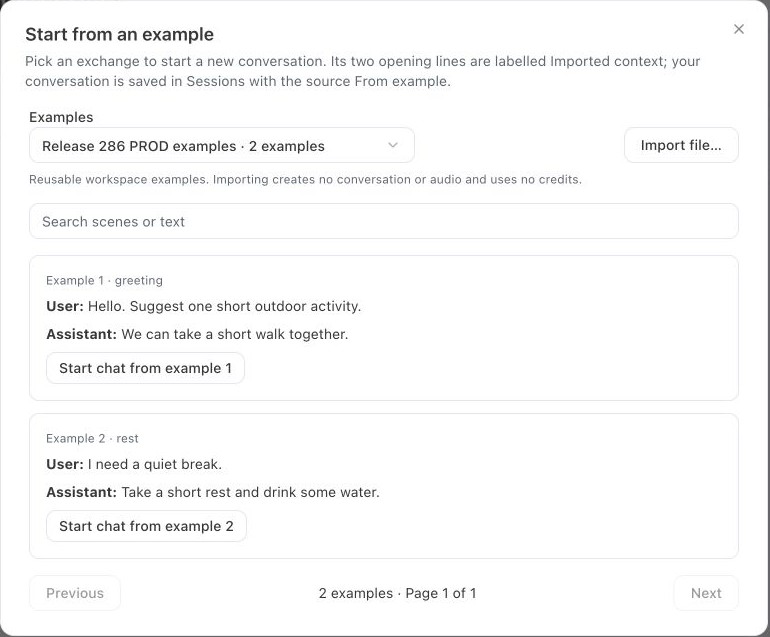
Send the next message
The two opening messages are labeled Imported. In Type a message…, enter
What did you just suggest I drink?and select Send. You do not need to start a microphone session to type a follow-up.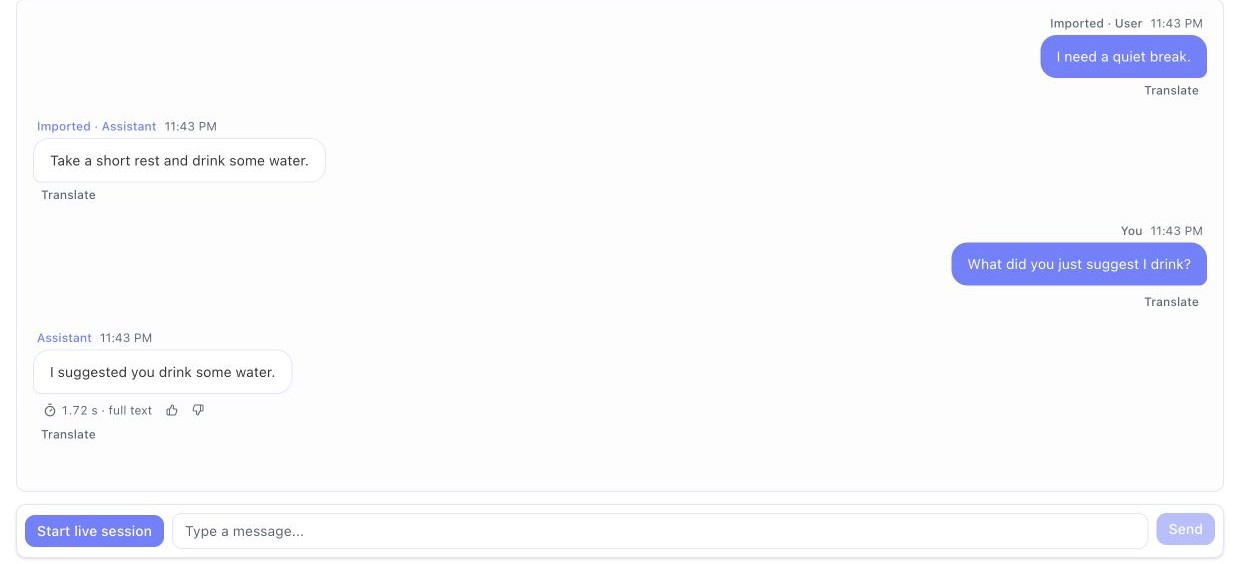
Find the chat again
Open Sessions. In All sources, choose From example, then select Open conversation. A typed-only chat shows No voice recording; its text is still saved.

If you get stuck
Common questions
| What you see | What to do |
|---|---|
| An access message or missing product | Check the workspace in the account menu at the bottom left. Ask its owner for Text to Speech access, plus Agent run access for test scripts. Text-only test suites need only Agent run access. |
| A script import error | Fix the listed lines and choose the file again. Each User: line needs an Assistant: line after it. Nothing is saved while errors remain. |
| Generate audition is disabled | Choose an Agent with a Fish Audio S2 or ElevenLabs v3 voice and Agent run permission. If User audio is enabled, choose its voice too. |
| The estimate differs from my charge | The estimate is based on text length. Charges use the seconds actually generated, and reused User lines are free. If you can see Usage & credits, charges appear under TTS usage. |
| A long script | Every exchange is generated, one clip at a time. You can start listening while it generates, leave and come back, or select Stop remaining. The current clip may finish and be billed; completed clips are kept. |
| Waiting for this line to finish generating… | Playback continues when the line is ready. The slider works once every line in the current voice is ready. |
| This line has no audio | Generation failed for that line. Select Retry failed items if it is offered, or select another line to keep listening. |
| Assistant only · earlier audition | Auditions made before User voices existed play only the Assistant lines. |
| Can I download the whole dialogue as one file? | No. The player plays the saved lines in sequence in your browser. |
| Run is disabled with Score with AI judge selected | Add Expected behavior to every case in the suite, then save it. To run only rule checks, explicitly turn the judge off. |
| A case cannot be saved | The message names the case and problem. The conversation must end with a User message and stay within 40 messages and 48,000 characters. |
| My Agent change did not affect a test | Select Save draft in the Agent editor, then Run again. An old run always keeps its old reply and voice. |
| Results seem to be missing | Auditions are in Scripts → your script → Audition history (the latest 30 per script are listed). Test scripts are in Agents → that Agent → Tests. Only chats started from an example appear in Sessions → From example. |
Scripts, examples and generated audio are shared with your workspace. Your marks and listening position are private.